Natural Language Editing
Edit with plain prompts
Describe the exact change you want, from object removal and background replacement to lighting updates, style changes, and product refinements.
Free Online
Edit, transform, and refine images with Nano Banana 2, powered by Gemini 3.1 Flash Image. Upload a photo, describe the change, and create polished edits for product shots, portraits, posters, social graphics, ads, and campaign visuals.
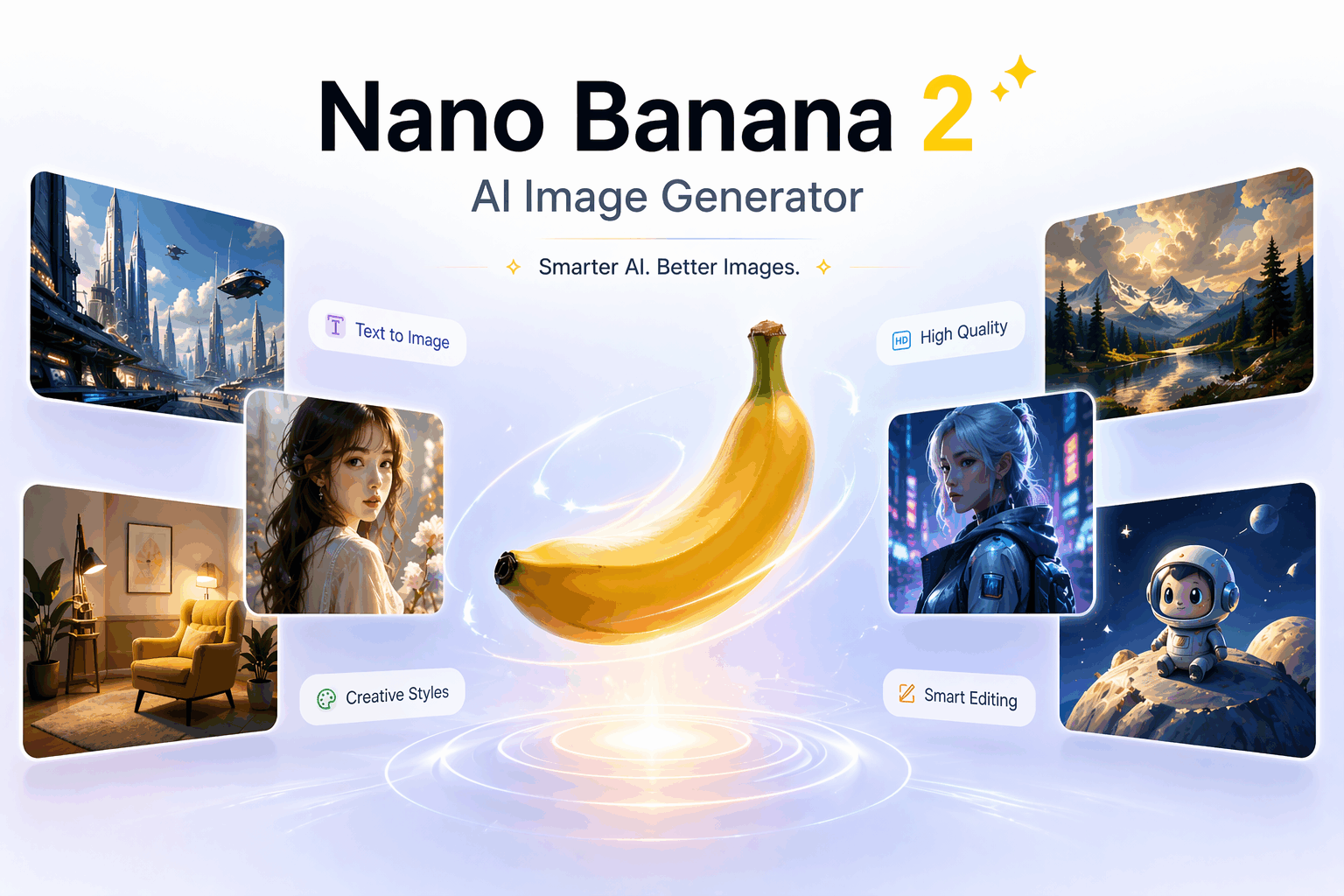
Photo editor
Upload an image, write a natural language edit, and generate a refined version with stronger prompt following and cleaner visual detail.

Model overview
Nano Banana 2 AI Photo Editor is a prompt-based image editing experience in GemPix. It understands both the uploaded image and the instruction, then applies changes while preserving the parts that should stay consistent.
Use it for quick fixes, creative restyling, product image cleanup, background changes, object replacement, detail enhancement, and readable text updates inside images.
Natural Language Editing
Describe the exact change you want, from object removal and background replacement to lighting updates, style changes, and product refinements.
Image Understanding
Nano Banana 2 reads the image context first, helping edits keep subject identity, product shape, camera angle, and important composition details intact.
Text Replacement
Update signs, labels, posters, packaging, and social graphics with clearer text rendering, better placement, and stronger alignment with the requested wording.
Background and Object Edits
Remove distractions, swap objects, change backgrounds, add props, or transform the setting while keeping the final image coherent.
Fast Iteration
Generate a first edit, adjust the prompt, and compare variations quickly when you need several visual directions for the same source image.
Production Use
Create sharper product images, campaign variants, thumbnails, profile visuals, ads, and content assets without switching between complex manual tools.
How it works
Nano Banana 2 photo editing works best when the prompt says what to change and what to preserve. A focused edit request usually produces cleaner results than a long list of competing instructions.
Step 1
Start with a portrait, product photo, poster, social graphic, or design draft that needs a focused visual change.
Step 2
Name the exact change, then explain what should stay the same: subject identity, pose, product shape, camera angle, or layout.
Step 3
GemPix sends the image and prompt to Nano Banana 2, then returns an edited version that follows the requested visual direction.
Step 4
Adjust the prompt if the edit needs cleaner text, stronger detail, a different background, or tighter subject consistency.
Prompt guide
A strong image editing prompt reads like a short creative brief. It names the change, sets boundaries, and describes the final look without asking the model to guess what should stay untouched.
Replace the background with a modern cafe, keep the person and pose unchanged, preserve facial features, use soft daylight, and make the final image look like a realistic editorial photo.
Use cases
This AI photo editor is built for practical visual changes: quick corrections, fresh creative directions, and production-ready assets from images you already have.
Change backgrounds, remove distractions, adjust colorways, improve lighting, and create polished product scenes from existing images.
Update campaign visuals, replace copy, restyle creative directions, and make quick variations for launches, offers, and seasonal assets.
Improve portraits, change settings, refine lighting, restyle outfits, or create cleaner visuals while keeping the person recognizable.
Iterate on compositions, change mood, test backgrounds, repair details, and explore directions before moving into final design work.
FAQ
It is a prompt-based image editor in GemPix that uses Nano Banana 2 to edit an uploaded image. You describe the change in text, and the editor generates a revised version.
Yes. GemPix supports both text-to-image generation and image editing. Use this photo editor when you want to modify an existing image, and use the image generator when you want to create a new image from text.
Focused edits work best: replace a background, remove an object, change product color, improve lighting, restyle the image, update text, or refine details while preserving the main subject.
Yes. Nano Banana 2 can help replace or add short text inside images, including signs, labels, posters, and product graphics. Short wording usually produces cleaner results.
Tell the model what to change and what to keep unchanged. Mention subject identity, pose, product shape, camera angle, lighting, and exact text when those details matter.
Start editing
Upload an image, describe the edit, then refine the prompt until the subject, scene, text, and final style match your brief.